


In the AI Agent architecture blog, we covered the core concepts of AI agents. In this guide, let's use those concepts to build a Kubernetes AI Agent from scratch.
The agent we will build will investigate a Kubernetes issue, use tools to gather information, reason about what it finds, propose a fix, wait for our approval, and verify whether the fix worked.
Also, along the way, you will see how the agent loop, tools, state, and human approval concepts fit into a real implementation.
At the end of this guide, you will have the following:
- Understanding of an Agent code structure
- Where the AI Agent concepts fit into a real implementation
- A working Kubernetes troubleshooting agent
- And a clear idea of how the agent works in Kubernetes troubleshooting
What Are We Building?
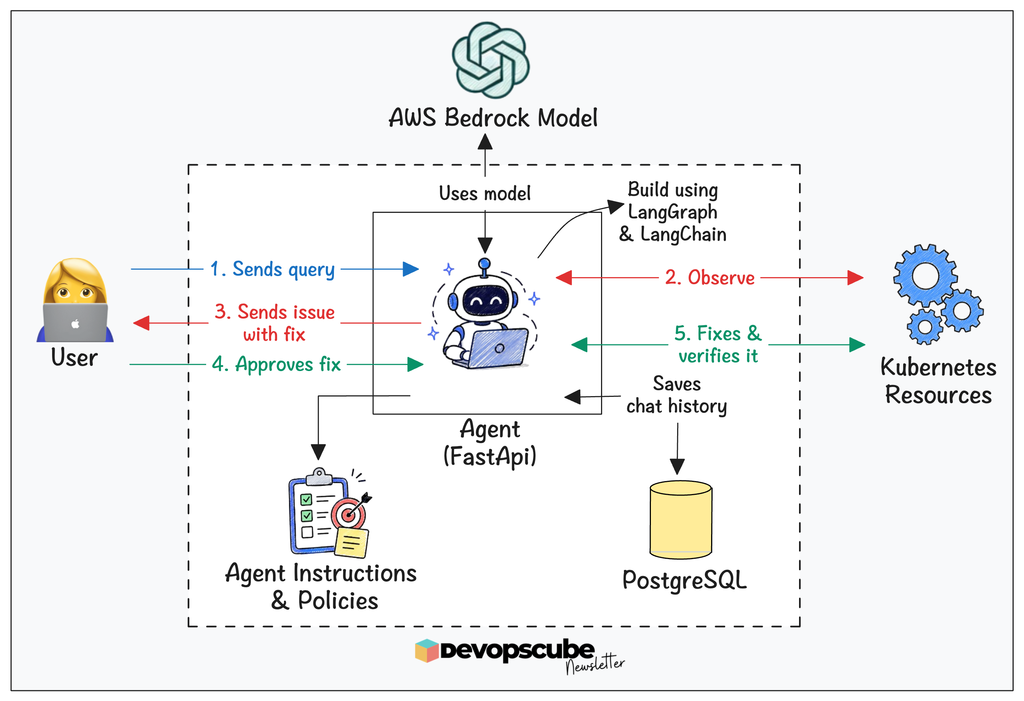
We are building a Kubernetes agent that troubleshoots the cluster using plain-English requests. It investigates the live cluster using resource details, events, and logs, identifies the root cause, and proposes a fix.
Before making a change, the agent waits for your approval. You can approve, reject, or provide a custom fix instead.
Once approved, it applies the change using a relevant function tool, then rechecks the cluster to verify the issue is resolved. If the problem remains, it proposes another fix.
Here is the agent architecture.
Before we start building, I want to make one thing clear. The goal here isn’t to say every DevOps engineer should build their own AI agents.
In real project environments, you might use an existing agent and connect it to your internal systems, or build one for a specific use case.
Either way, from an infrastructure perspective, you should understand:
- Tool access: How agents interact with Kubernetes, cloud APIs, monitoring systems, GitHub, and other tools.
- Context: How agents use logs, metrics, alerts, documentation, and runbooks.
- Security: How identity, RBAC, secrets, and permissions control what an agent can do.
- Observability: How to trace LLM calls, tool calls, failures, latency, and agent actions.
We will cover these concepts while building the agent. But first, let’s look at how infrastructure teams use AI today.
How Are Infrastructure Teams Using AI Today?
Before we build our agent, here is some interesting data.
Pulumi's 2026 State of Agentic Infrastructure survey of 510 engineers found:
- 24% reported using in-house agents for infrastructure work.
- 81% allow agents to make production infrastructure changes
- 62% require human approval.
- Only 19% allow agents to make those changes autonomously.
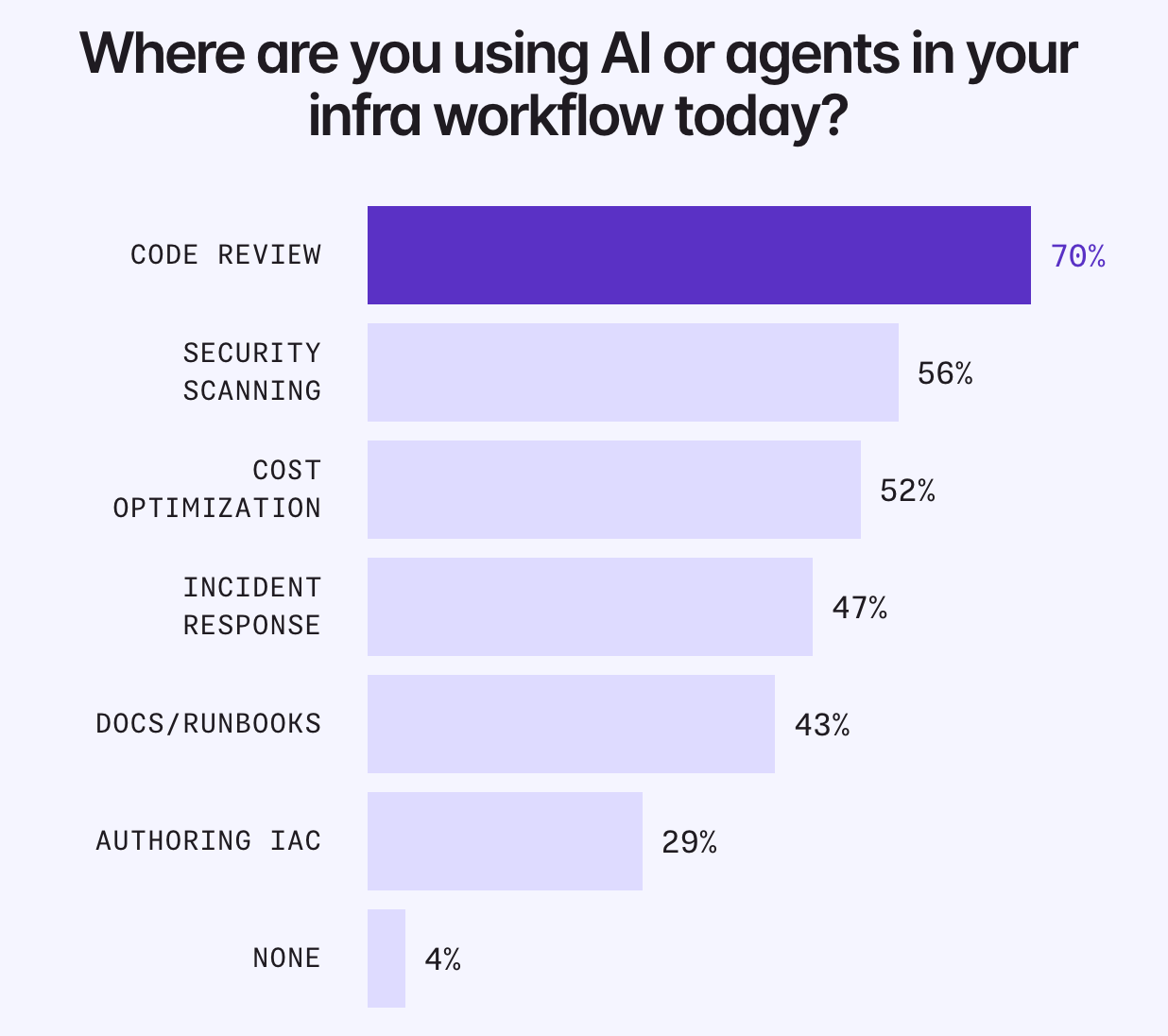
The following image shows where engineers use AI agents in infra.
Now, let's put everything we've learned so far into practice with a project.
Setup Prerequisites
Below are the prerequisites.
- AWS EKS Cluster with pod-identity-agent addon enabled
- kubectl
- Docker
- Two Docker repositories
- AWS CLI with access to AWS IAM and EKS
- Kustomize
Agent Project Structure
We have pushed all code files to our GitHub repository.
Fork and clone the repository to your local machine, then navigate into the kubernetes-ai-projects/ai-agent folder.
git clone https://github.com/techiescamp/kubernetes-ai-projects.git
cd kubernetes-ai-projects/ai-agent
Inside the ai-agent folder, these are the key files of the agent backend and frontend interface.
The following image explains what the code files do.
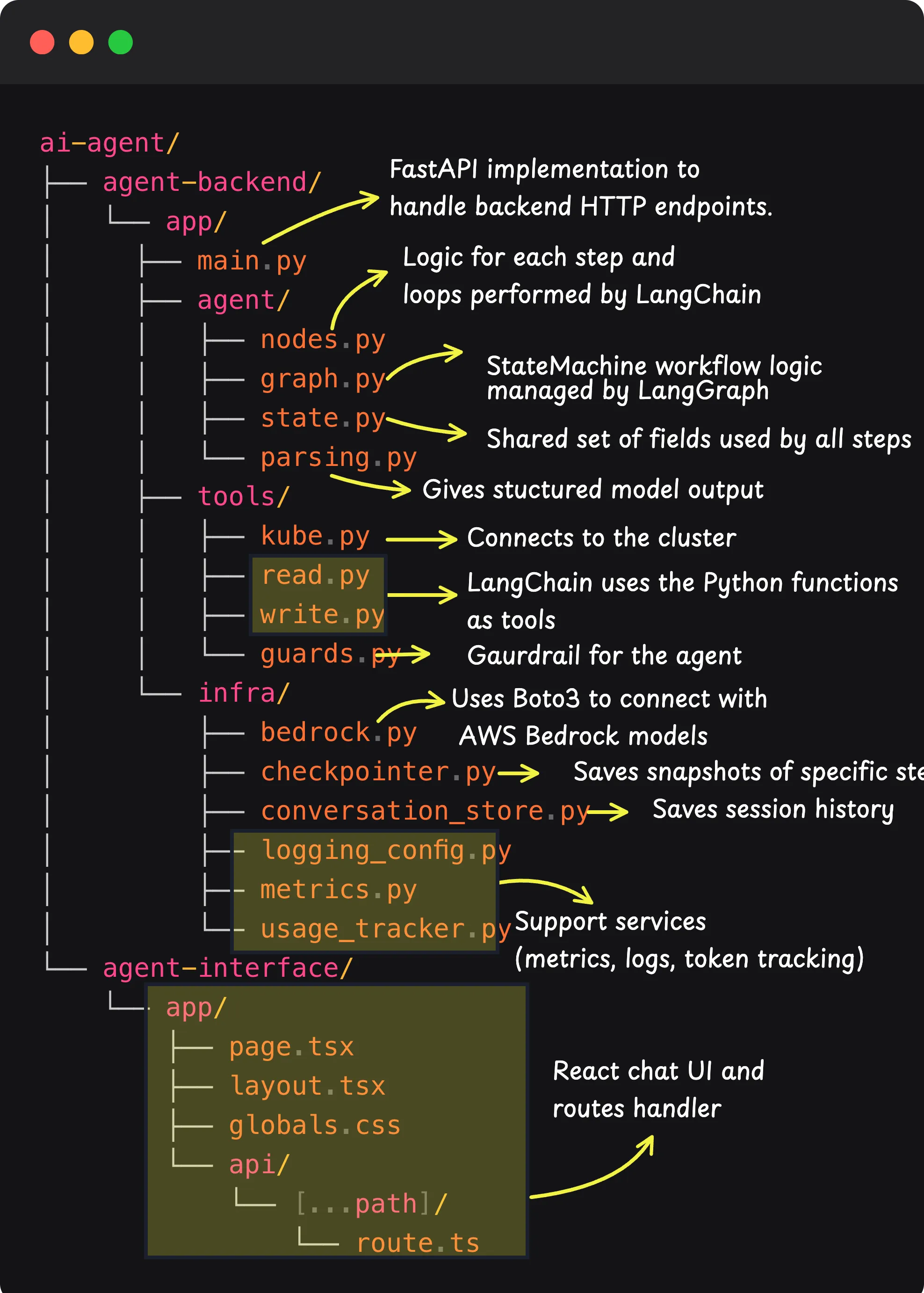
In this, the agent-backend folder contains the agent code. Let's get an overview of what it does.
Agent Backend
This is the structure of the backend source code folder.
agent-backend/app/
 ├── main.py
 ├── agent/
 ├── tools/
 └── infra/
The backend/app folder contains 1 main Python file and three folders as shown above; let's go through it.
main.py
The backend is built with FastAPI, and this file handles the HTTP endpoints. Below are the key endpoints available for the agent.
| API Endpoint | Description |
|---|---|
/api/query |
Starts a session. |
/api/decision |
Handles approval or rejection requests. |
/api/select-issues |
Lets you select which issues to fix when multiple issues are found. |
/api/guidance |
Handles custom instructions. |
/api/retry |
Retries a failed fix. |
/healthz |
Checks the health of the agent. |
/metrics |
Exposes application metrics. |
agent/
This folder contains the agent logic of how it should work.
agent/
├── state.py
├── graph.py
├── nodes.py
└── parsing.py
What each file does:
| File | Description |
|---|---|
nodes.py |
Contains the actual logic for each step in the workflow. |
state.py |
Defines the shared fields used by all steps, such as issues, retry_context, and goal_achieved. LangGraph uses this state to pass information between steps. |
graph.py |
Defines how the steps in nodes.py are connected and determines their execution order. |
parsing.py |
Extracts specific fields, such as detected issues and routing decisions, from the model's response. |
tools/
This folder contains the operations logic the agent can do on the Kubernetes cluster.
tools/
├── kube.py
├── read.py
├── write.py
└── guards.py
What each file does:
| File | Description |
|---|---|
kube.py |
Manages the connection between the agent and the cluster using the pods own service account token and CA certificate, and cleans up raw K8s error messages into something the ML model can actually use. |
read.py |
Contains tools that perform read operations, such as listing resources, reading logs, and checking events |
write.py |
Contains tools that can do actions like creating, deleting, and updating. |
guards.py |
This is the guardrail logic for the agent, which blocks certain write operations like modifying the agent’s own RBAC or healthy system workloads. |
Every tool is a plain Python function with a @tool decorator.
The decorator reads the function's argument names, types, and docstring and turns them into a JSON schema. It sends that schema to the LLM, so it knows the function exists and when to call it.
The LLM never runs the function. When it decides to use it, it outputs a structured request with the tool name and arguments. Your code reads that and calls the actual Python function, and gives the result back to the model as text.
The tools do the actual work on the cluster, and the LLM decides what to ask for. The current agent has 24 read tools and 11 write tools configured.
infra/
This folder contains files that give the agent additional capabilities, like logging, storage, and a token usage tracker.
infra/
├── bedrock.py
├── checkpointer.py
├── conversation_store.py
├── logging_config.py
├── metrics.py
└── usage_tracker.py
What each file does:
| File | Description |
|---|---|
bedrock.py |
Uses boto3 to connect with the model on AWS Bedrock |
checkpointer.py |
Contains configuration to connect with PostgreSQL and also, if PostgreSQL is not configured, saves data in memory. |
conversation_store.py |
Saves session history in PostgreSQL. |
logging_config.py |
Exposes application logs on STDOUT. |
metrics.py |
Exposes application metrics like session duration, tools called, token usage in /metrics. |
usage_tracker.py |
Tracks token usage and shows the usage on the UI |
The agent can use two separate ML models, one for diagnosis and verification, and another for fixing.
This lets us select an ML model suited for analysis and fixing. We can also use the same model for both if needed.
LangGraph controls the workflow order and the tools used at each stage.
Diagnosis, proposal, and verification tools only have read-only access, and write tools are used only after the user approves the fix plan.
Agent Interface (Web UI)
The agent also has a chat interface that allows users to send requests in plain English and view troubleshooting results.
The interface is built with React and Next.js. React provides the interactive user interface, while Next.js adds routing, build tooling, and server-side request handling.
The application runs on Node.js because the Next.js server executes route.ts, a Route Handler that acts as an API proxy. It receives /api/* requests from the UI and forwards them to the FastAPI backend.
This is the structure of the interface's source code folder.
agent-interface/app/
 ├── page.tsx
 ├── layout.tsx
 ├── globals.css
 └── /api/[...path]/route.ts
The files contain:
| File | Description |
|---|---|
page.tsx |
Main chat page code |
layout.tsx |
Page layout code |
globals.css |
Application design code |
/api/[...path]/route.ts |
Receives /api/* requests and forwards them to the FastAPI backend. |
An agent doesn't always need a chat interface. It can also run through an API, command-line interface, scheduled job, or automation workflow.
Now, you got a good idea about an agent, lets build and deploy one.
Containerize the Agent Code
We have built the agent using Docker and pushed the images to our DockerHub registry.
If you are going to build your own image, build two images: one for the agent's frontend and one for the backend.
Run the following commands from the ai-agent folder to build and push the images to your registry.
export REGISTRY=<registry name>
export TAG=v1.0.0

docker build -t $REGISTRY/ai-agent-backend:$TAG  agent-backend/
docker build -t $REGISTRY/ai-agent-frontend:$TAG agent-interface/

docker push $REGISTRY/ai-agent-backend:$TAG
docker push $REGISTRY/ai-agent-frontend:$TAG
Now, lets move on to the deployment part.
Hands-On: Deploy the Agent on EKS
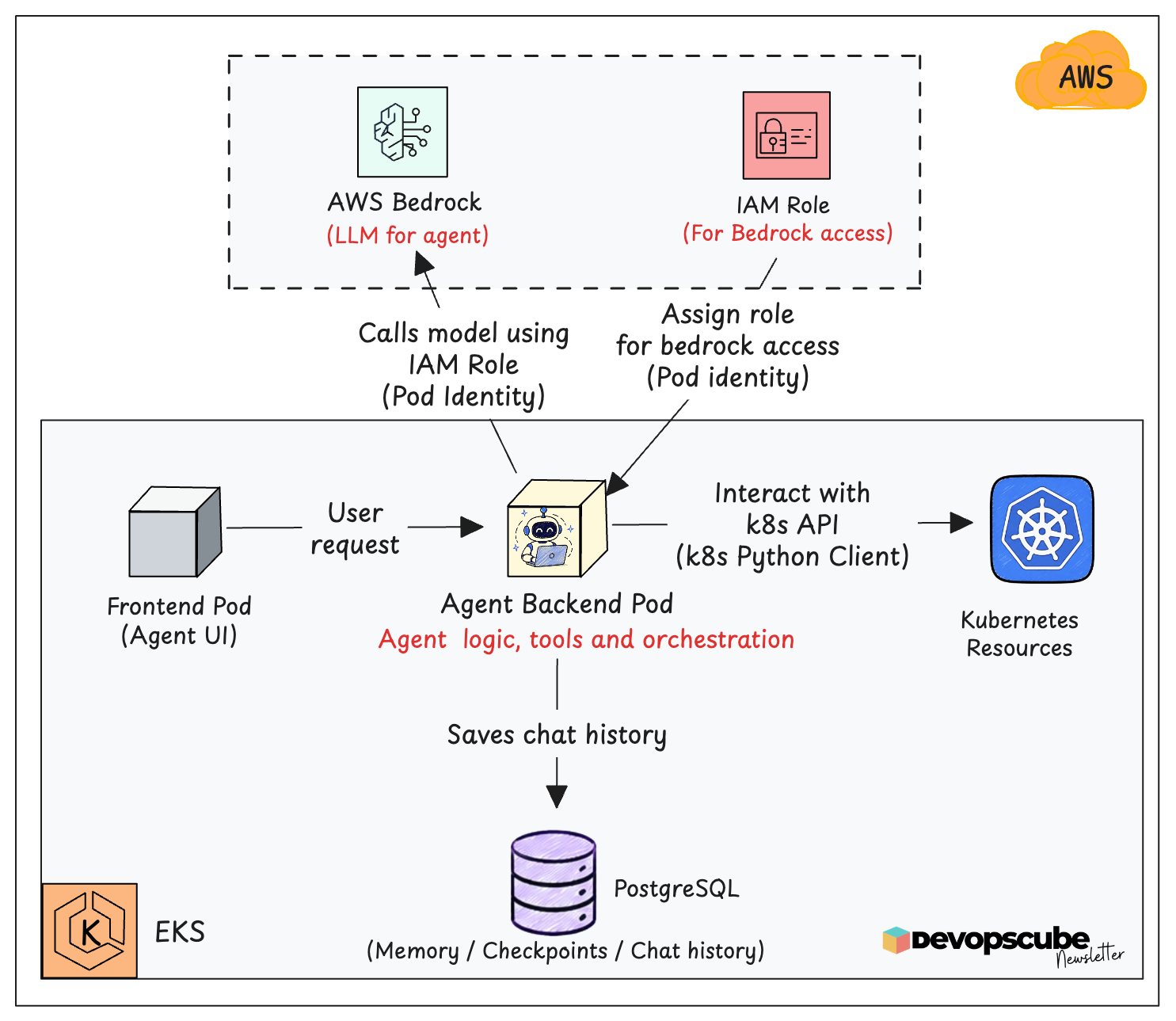
In this section, we will set up AWS Bedrock access to the agent using Pod Identity and deploy the agent in the cluster using Kustomize.
The diagram below gives you an overview of what we are going to set up.
Let's get started.
Step 1: Choose ML Models from AWS Bedrock
For this agent, we used Amazon's Nova Pro model for both diagnosis and remediation.
We chose this model because it needs to support calling tools and checking the logs, events, and tool results before making a decision.
For this, the model needs to handle long inputs, and the Nova Pro model is good at analysis, question answering, text generation, and summarization.
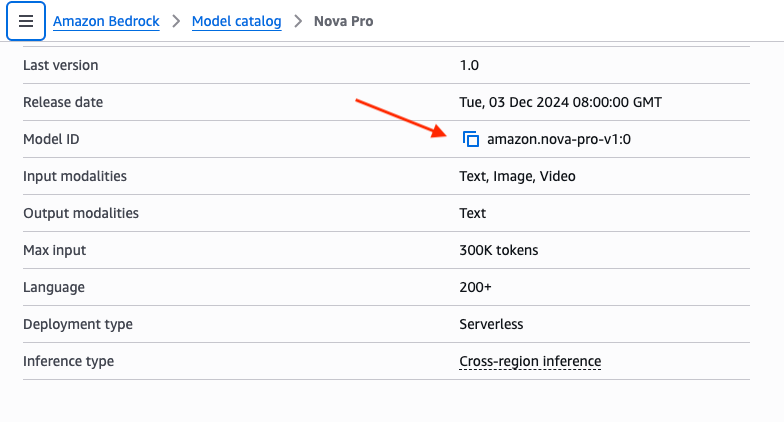
We are not saying this is the best model for a Kubernetes agent; we are saying this is one of the suitable models.
Amazon's Nova Pro model costs $0.80 per million input tokens and $3.20 per million output tokens in the Oregon region.
Check the Amazon pricing page for current model costs.
Step 2: Set Up AWS Permissions with Pod Identity
The agent calls Bedrock for the ML model, so it needs an IAM role. We are going to use EKS Pod Identity to attach a role to the agent.
For that, we have created a custom script to create a role and attach it to the service account.
Move into the k8s/scripts folder.
cd k8s/scriptsThen, open the setup-pod-identity.sh script and update your cluster name.
After updating the cluster name, run the following commands to run the script.
chmod +x setup-pod-identity.sh

./setup-pod-identity.sh create
Step 3: Configure the Kustomization File
Before deploying, we need to modify the kustomization.yaml in the k8s folder. For that, move out of the scripts folder into the k8s folder.
Then, open the kustomization.yaml and update the following highlighted configs in the image.
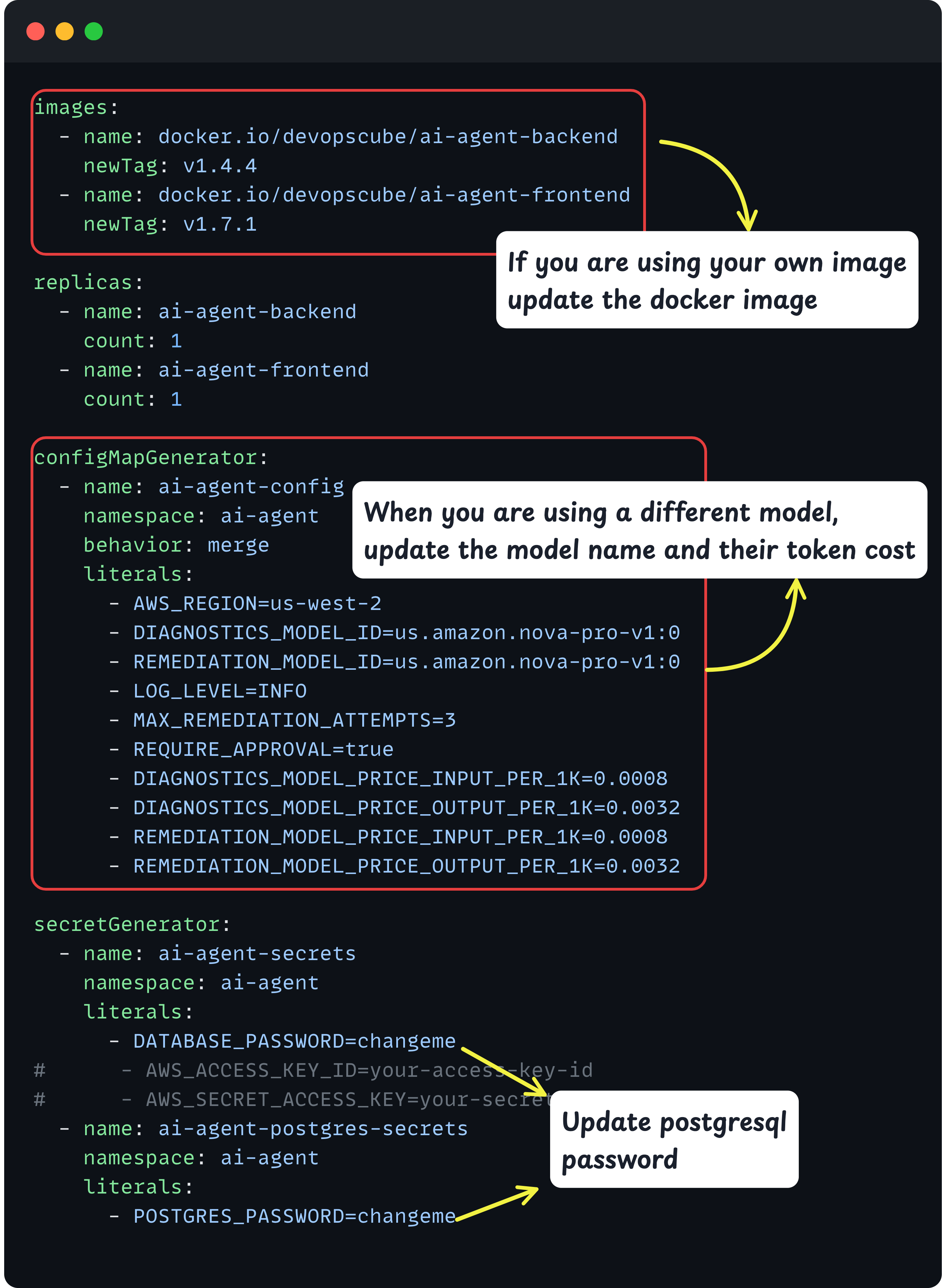
- Docker image, if you are using your own image
- Update the region, model name, and their token cost under the configMapGenerator block if you are using a different model.
- The model we are using is Amazon's
amazon.nova-pro-v1:0for both diagnosing and fixing the issue. - Then update the PostgreSQL password under the secretGenerator block.
AWS_ACCESS_KEY_ID and AWS_SECRET_ACCESS_KEY and update it with AWS credentials.The agent currently only supports models from AWS bedrock.
Step 4: Deploying the Agent
Now that everything is set, let's deploy the agent in the cluster.
Run the following command inside the k8s folder.
kubectl apply -k .This uses the kustomization.yaml to apply all the manifests.
Once applied, use the following command to verify that the frontend, backend, and PostgreSQL pods are running.
$ kubectl get po -n ai-agent

NAME                                 READY   STATUS    RESTARTS   AGE

ai-agent-backend-5ccd887dbb-p84pr    1/1     Running   0          1m
ai-agent-frontend-79cc74499f-x76s4   1/1     Running   0          1m
ai-agent-postgres-0                  1/1     Running   0          1m
Step 5: Access the Agent Web UI
To access the UI, we will port-forward the frontend service and access it through that port.
Use the following command to port-forward the service.
kubectl -n ai-agent port-forward svc/ai-agent-frontend 3000:3000This will expose the agent's frontend on port 3000. You can access the UI at URL http://localhost:3000 as shown below.
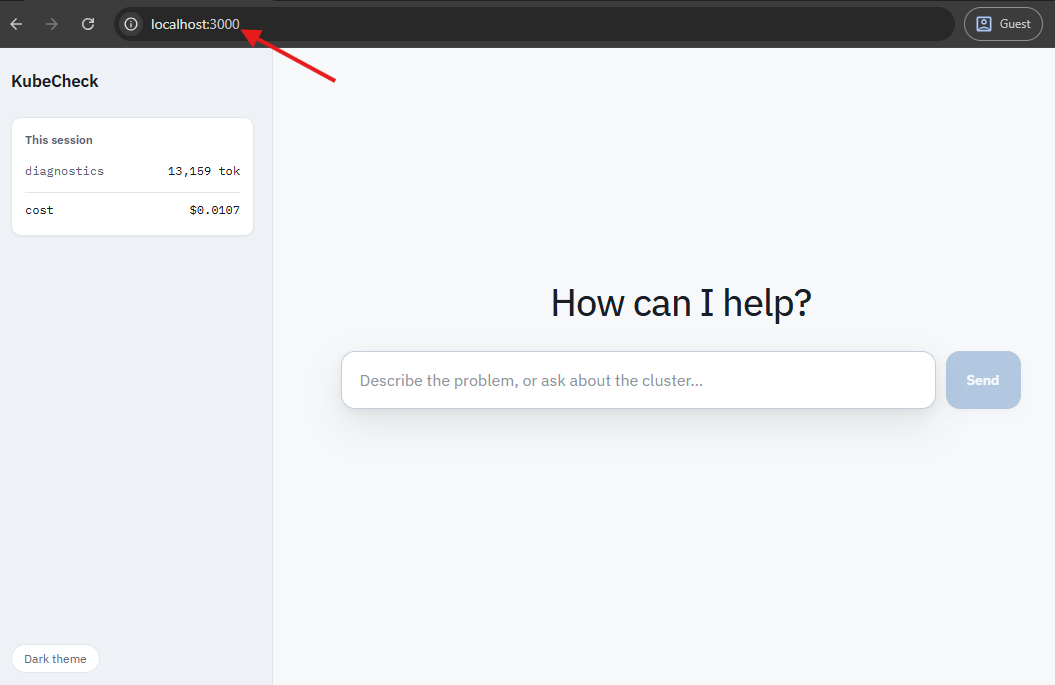
The agent is now up and running. In the next section, we will test the agent with a troubleshooting task.
Testing the Agent
To test the agent, we will simulate an issue by deploying a pod with a nodeSelector that matches no nodes and ask the agent to troubleshoot it.
First, deploy the pod using the following command.
cat <<EOF | kubectl apply -f -
apiVersion: v1
kind: Pod
metadata:
  name: web-service
spec:
  containers:
  - image: nginx
    name: web-service
  nodeSelector:
    type: web
EOF
You can see the pod is in a pending state.
$ kubectl get po

NAME          READY   STATUS    RESTARTS   AGE
web-service   0/1     Pending   0          78s
Now, let's ask the agent to fix it.
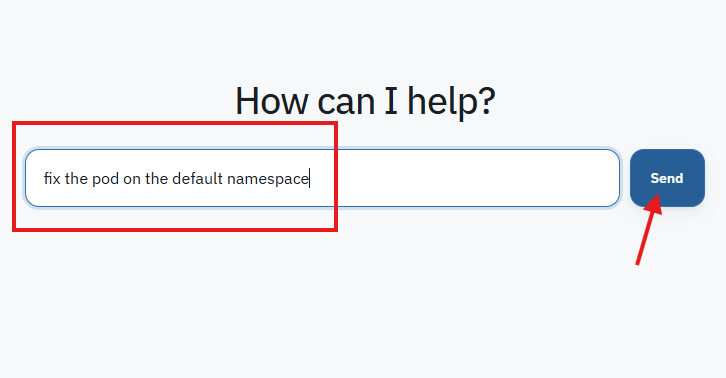
When you send the request, LangGraph starts the State Machine workflow defined in agent/graph.py, and the diagnostic step uses the read tools from tools/read.py and uses the agent loop to get all details and create a fix plan.
The agent then proposes a fix and asks for your approval, as shown below.
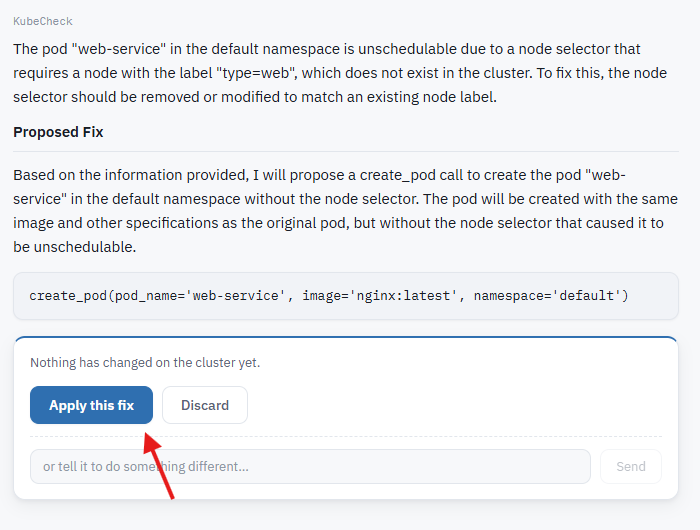
When you approve the fix, the State Machines remediation step runs the write tools from tools/write.py in a loop.
Also, while using the write tools, the guardrail logic in tools/guards.py checks if the action is allowed
If the issue is fixed, you will get an output similar to the one below.
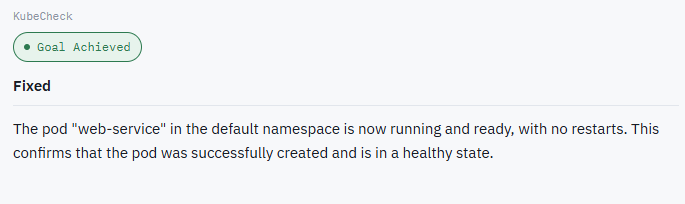
You can see the pod is running.
$ kubectl get po

NAME          READY   STATUS    RESTARTS   AGE
web-service   1/1     Running   0          30s
Also, in the top-left corner, you can see the token usage and cost, as shown below.
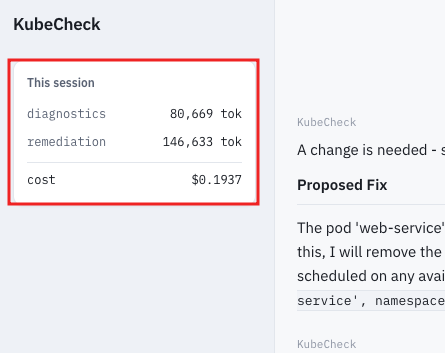
For each model input and output, Bedrock attaches the token count along with the response by default.
In infra/usage_tracker.py, the logic adds these token counts and performs a simple Python arithmetic calculation to estimate the cost of the tokens used.
End-to-End Request Flow
The following diagram shows the complete flow of a troubleshooting request through the agent to a Kubernetes resource.
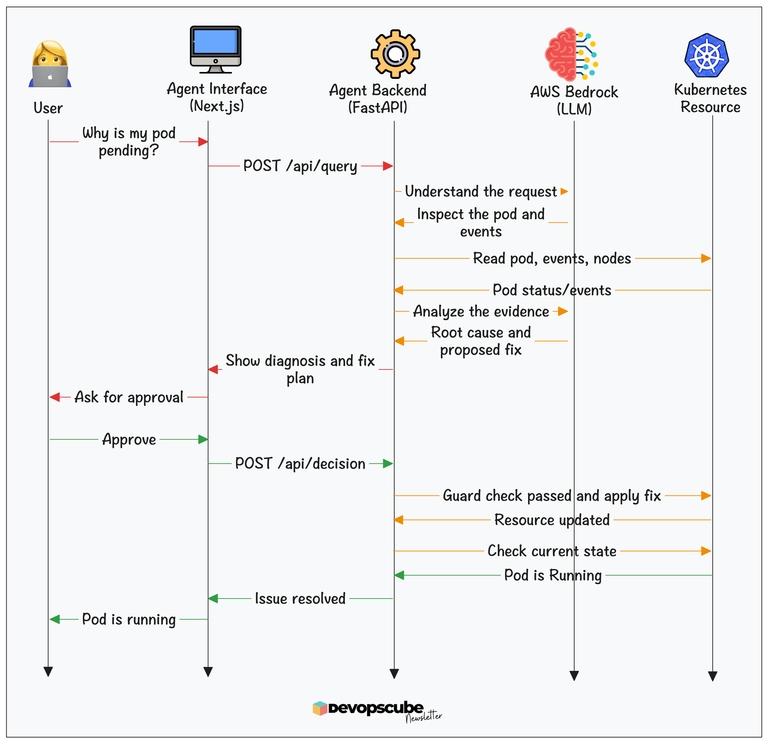
You can use tools like OpenTelemetry and Langfuse to trace LLM calls, tool calls, latency, failures, and agent actions. This helps you understand what the agent did, which systems it interacted with, and where something went wrong.
Clean Up
Now, if you no longer need the setup, run the following commands to clean it up.
Run the following commands from inside the k8s folder to delete the Kubernetes resources.
kubectl delete -k .Then, run the following command from the k8s/scripts folder to clean up the IAM Role and pod identity association.
./setup-pod-identity.sh cleanupConclusion
In this guide, we have deployed a Kubernetes troubleshooting agent on EKS and tested troubleshooting a pod stuck in Pending.
There is an important challenge when running AI agents.
Unlike regular applications, agents can make autonomous decisions and take actions. If an agent has access to your cluster, you need to ensure it cannot perform actions beyond its allowed permissions.
One way to address this is to run agents in a secure, isolated environment using the Kubernetes Agent Sandbox.
In the next blog, we will look at running an AI Agent inside the Agent Sandbox.