


The DevOpsCube Beehiiv newsletter is growing, but we also have some inactive subscribers who didn't open our last 3-5 newsletters.
That creates a small problem with email open rates. We usually have an open rate above 40%. But it started dropping to 35% levels.
You might ask, " It's just an open rate. What's the big deal?
Well, when you get a sponsorship opportunity or reach out to a brand, one of the first things they ask about is your open rate, click-through rate(CTR), and other engagement metrics.
So, if your open rate is very low, sponsors may not be interested in sponsoring your newsletter, and you may pay for subscribers who don't open your emails.
So, I wanted an easy way to identify inactive subscribers and keep our newsletter list clean. Beehiiv already has a Segments feature for doing this.
But instead of creating the segment manually, I tried something different. I connected Beehiiv MCP to Claude and asked Claude to find our inactive subscribers and create the segment for me. It worked pretty well.
In this guide, I will show you exactly how I did it, including the prompt I used and how I verified the segment before making any changes to our subscribers.
What I Automated With Beehiiv MCP
I wanted an easy way to identify subscribers who were no longer engaging with our newsletter
Instead of checking subscribers manually, I created a segment to group inactive subscribers separately and understand which part of our audience was no longer actively reading our emails.
To make this easier, I used Beehiiv MCP with Claude.
Claude --> Beehiiv MCP --> Check recent newsletter engagement --> Find inactive subscribers --> Create segment --> Verify in Beehiiv
I connected Beehiiv to Claude and gave it a prompt describing what I wanted to do. Within a couple of minutes, Claude created an inactive-subscriber segment with minimal effort.
Here is the recent segment I created for identifying inactive subscribers.
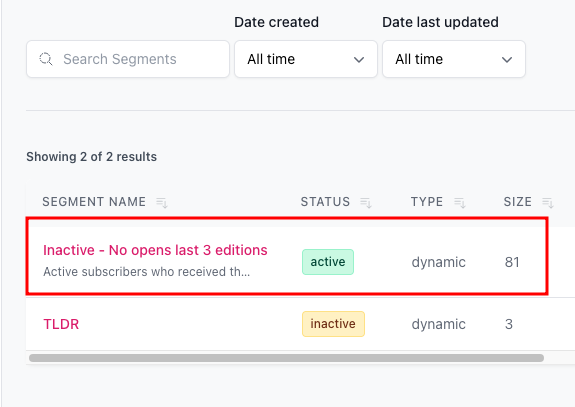
The whole process took me around 5–10 minutes.
Before I show you the exact steps, let's quickly understand how Beehiiv segments work.
What are Beehiiv Segments?
Let's say you have 20,000 subscribers, but not everyone is interested in every email you send.
Some of them may have never opened a single newsletter. So, you can group subscribers into categories such as highly engaged readers, inactive readers, and paid subscribers.
Beehiiv Segments help you group subscribers by their interests and behavior in your email list.
Then you can send content that is more relevant to the topics they care about. This can encourage them to engage more with your newsletter instead of ignoring your emails
This can help you build long-term relationships with your readers.
Types of Beehiiv Segments
Before you start creating segments with Claude, understand the three segment types Beehiiv currently offers.
1. Static Segment
A static segment creates a fixed list of subscribers who match your conditions when you create the segment. The subscribers inside that segment don't automatically change later.
2. Dynamic Segments
Dynamic segments automatically update as subscribers meet or no longer match the conditions you set. Beehiiv recalculates dynamic segments daily.
For example, you could have a dynamic segment for:
Subscribers who opened at least 3 newsletters during the last 30 days.
As subscriber activity changes, the segment can change as well.
I used dynamic segments for segmenting inactive subscribers.
3. Manual Segments
Manual segments contain a specific group of subscribers that you add yourself. They don't automatically update based on subscriber behavior.
These are useful when you already know exactly which subscribers you want to group together.
Now, let's learn how to create segments in Beehiiv using Claude. First, connect the Beehiiv MCP server to Claude.
Steps to Create a Beehiiv Segment Using Claude MCP
Now comes the main part you have been waiting for. As I mentioned earlier, you don't need to create the segment manually. You can give Claude instructions in plain English, and it will create it for you.
Here are the exact steps I followed:
Step 1: Connect Beehiiv to Claude using MCP
First, connect Beehiiv to Claude using the MCP server.
Follow our detailed guide to set it up: Connect Beehiiv to Claude using MCP.
Step 1: Verify Claude Can Access Beehiiv
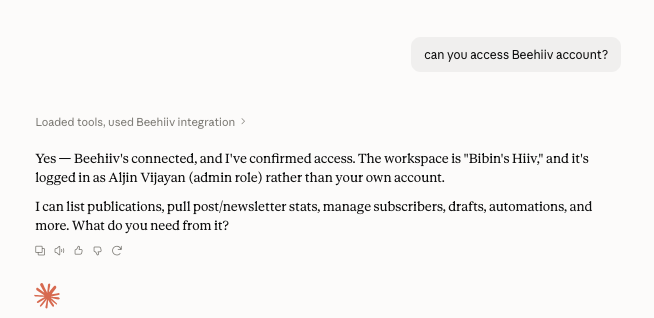
Simply ask Claude: Can you access the Beehiiv account?
It will confirm whether it can access it.
Step 2: Ask Claude to Find Inactive Subscribers
Now comes the interesting part.
Instead of manually reviewing our newsletter engagement data and building the segment myself, I told Claude exactly what I wanted.
For DevOpsCube, I wanted to identify inactive subscribers who hadn't opened our last three newsletter editions.
Here is the exact prompt I used:
Access our Beehiiv account and analyze subscriber engagement for our last three newsletter editions.
Identify subscribers who did not open any of the last three newsletters. Once you've identified them, analyse the subscriber data to confirm that they have zero opens across all three of the latest newsletter editions.
Create a new subscriber segment in Beehiiv containing these users. Name the segment as inactive users.
Make sure the segment includes only subscribers who mee the criteria above and does not include anyone who opened at least one of the last three newsletter.
Before creating the segment, briefly verify the criteria and the number of subscribers who will be included. Do no modigy, delete, or unscribe any existing subscribers or segments. Only create the new inactive users segment.
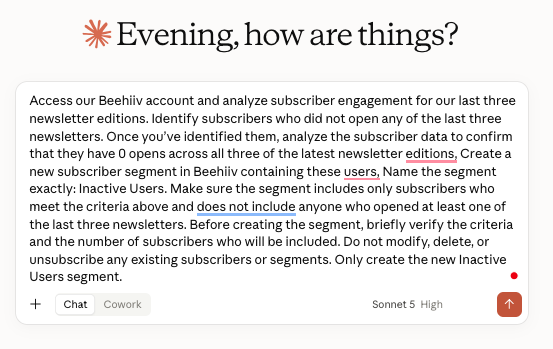
As you can see, I give Claude a clear prompt explaining exactly what it needs to do and what it shouldn't do.
Step 3: Review What Claude Is Going to Do
One important thing I recommend: Before asking Claude to create the segment, ask it to explain what it will do.
This is just a precaution to make sure everything is correct before you let it make any changes. Once you confirm everything looks right, tell Claude to start creating the segment.
Step 4: Verify the Beehiiv Segment
Even if Claude creates a segment for you, it's still a good idea to check the segment in your Beehiiv dashboard.
In the image below, you can see the segment Claude created for our newsletter. It turned out pretty well.
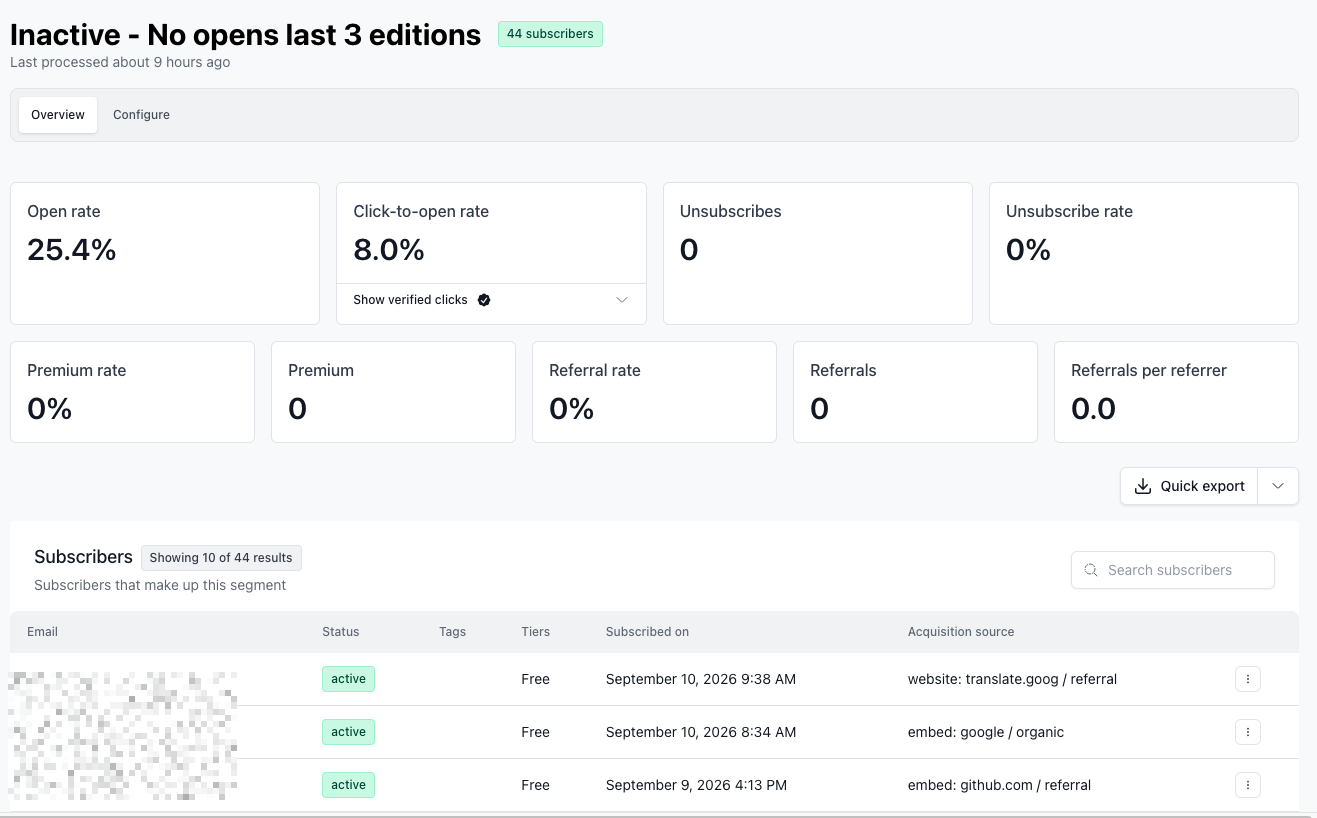
You can also edit the segment manually if you want.
Just click the configure option, and you'll see the segment configuration dashboard, as shown in the image below
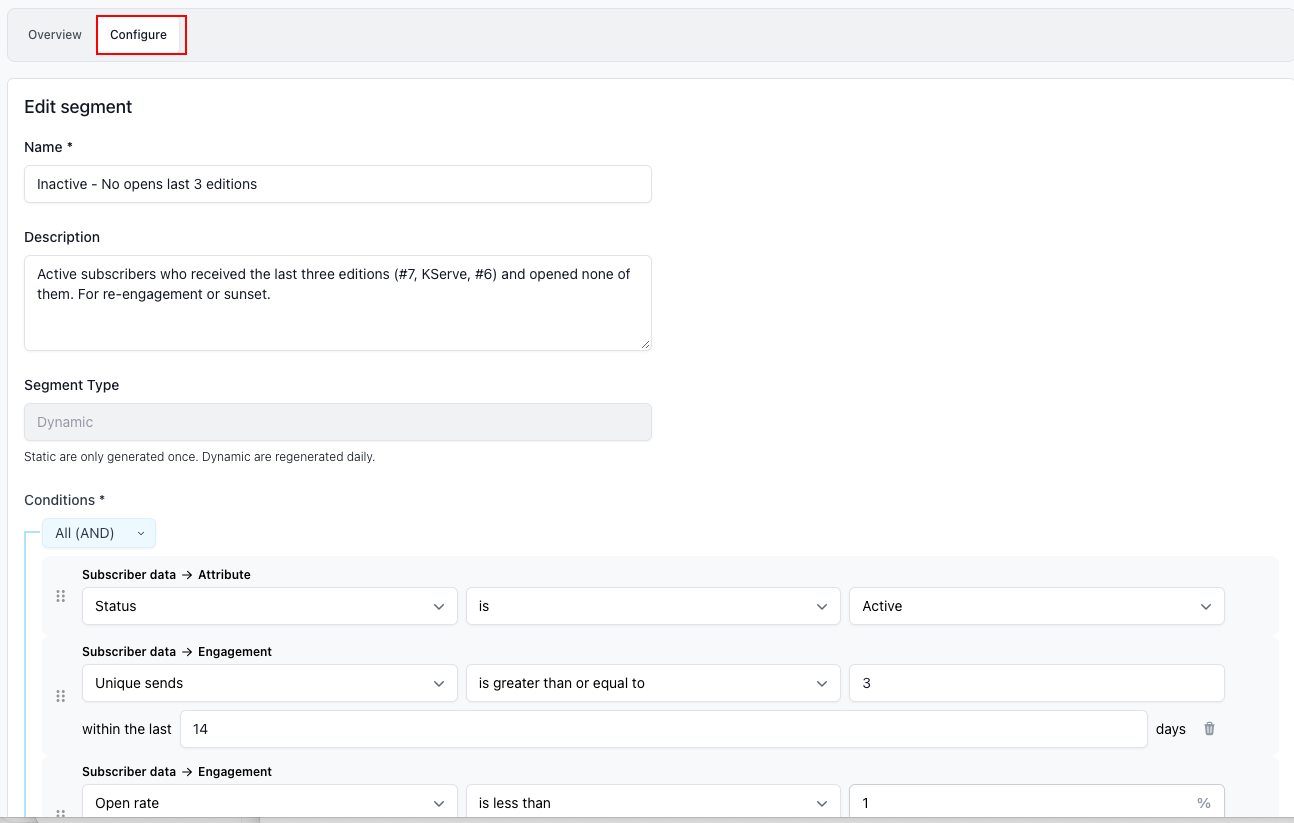
For me, it took literally 5-10 minutes to create this. This is really effortless work when you use Claude to create segments.
What Should You Do With Inactive Beehiiv Subscribers?
Once you have created the segment, you have a few options:
Option 1: Try to Re-engage Them
You can send a follow-up email to inactive subscribers asking whether they still want to receive your newsletter.
Some subscribers may become active again and start reading your newsletters.
Beehiiv provides automation features to create re-engagement workflows.. You can read more about Beehiiv Automations here.
Option 2: Unsubscribe Them
You can unsubscribe everyone in the segment you created. Those subscribers will no longer receive emails from you. However, their subscriber records and engagement history are retained.
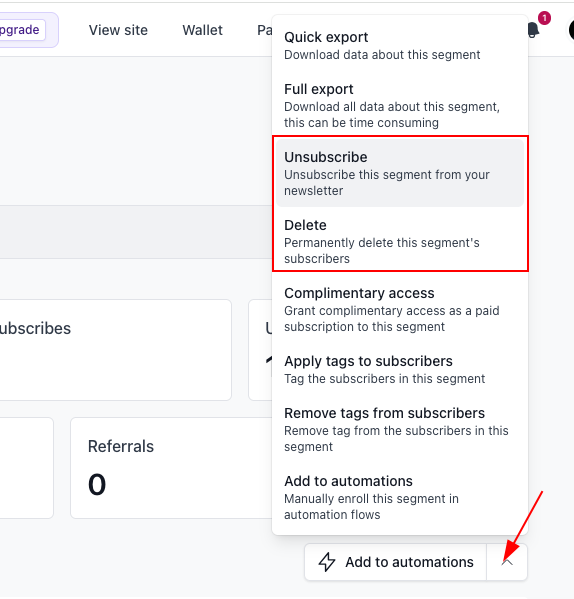
Option 3: Delete Them
Deleting is different. When you delete subscribers, Beehiiv permanently removes the subscribers and their associated data.
So be careful with this option. Before bulk deleting, verify the segment carefully. I would also recommend exporting your subscriber data before deleting anything.
For the DevOpsCube newsletter, I want to keep things simple. So I decided to remove inactive subscribers.
Conclusion
The interesting part of this experiment wasn't simply creating a Beehiiv segment.
I described the outcome I wanted in plain English. Claude used the Beehiiv MCP connection to check subscriber data, identify users who matched my criteria, and create the segment.
That saved me from having to configure everything manually.
But there is another lesson here that I think is more important. The more access you give an AI tool, the more important verification becomes.
My approach is simple:
Let AI handle the repetitive work. Keep a human check before destructive actions.
In this case, it took me about 5 to 10 minutes to create and verify the inactive subscriber segment.
If you already use Beehiiv and Claude, this is a useful workflow to experiment with for maintaining your newsletter list.
And when it comes to newsletters, a smaller list of engaged subscribers is often more valuable than a huge list that barely opens your email.
Over to you!
Are you using Beehiiv? If so, are you planning to segment subscribers for cleanup?
I would love to hear your thoughts on this. Please drop a comment below with your learnings!