


Looking to learn how to clone your voice in ElevenLabs? You are in the right place.
In this guide, you will learn how to clone your voice using ElevenLabs and how to avoid common mistakes while recording your audio.
I will explain each step based on how I cloned a voice for our DevOpsCube YouTube channel and DevOpsCube Instagram, with a focus on getting the right voice, tone, accent, and style.
ElevenLabs is widely used by creators who make content for platforms like YouTube, Instagram, audiobooks, dubbing, podcasts and more. It is one of the top tools that does this work better.
Lets get started with the tutorial.
Steps to Clone Your Voice Using ElevenLabs
Follow these steps to clone your voice with ElevenLabs in just a few minutes.
Step 1: Go to the voices page
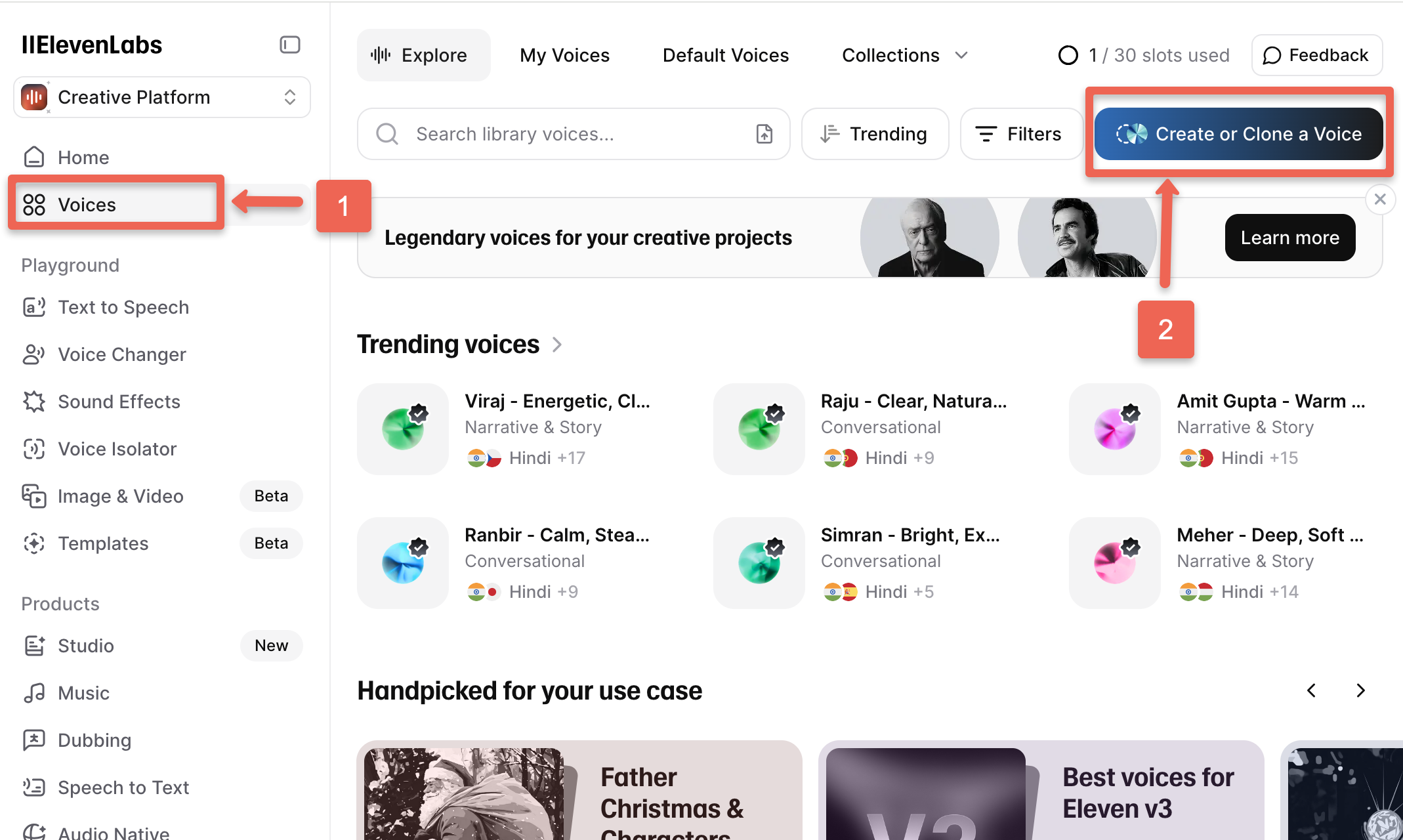
Once you login to Elevenlabs, in the dashboard, look at the left-side menu and click Voices. Once you enter the page, on the right side, you will see a button called Create or Clone a Voice. Click on it.
Step 2: Upload or record your audio
In the next page, you will see two options.
- If you already have pre-recorded audio, click Upload Sample and upload your file
- If you don’t have any audio, click Record Yourself to record your voice live. You can also select the language while recording.
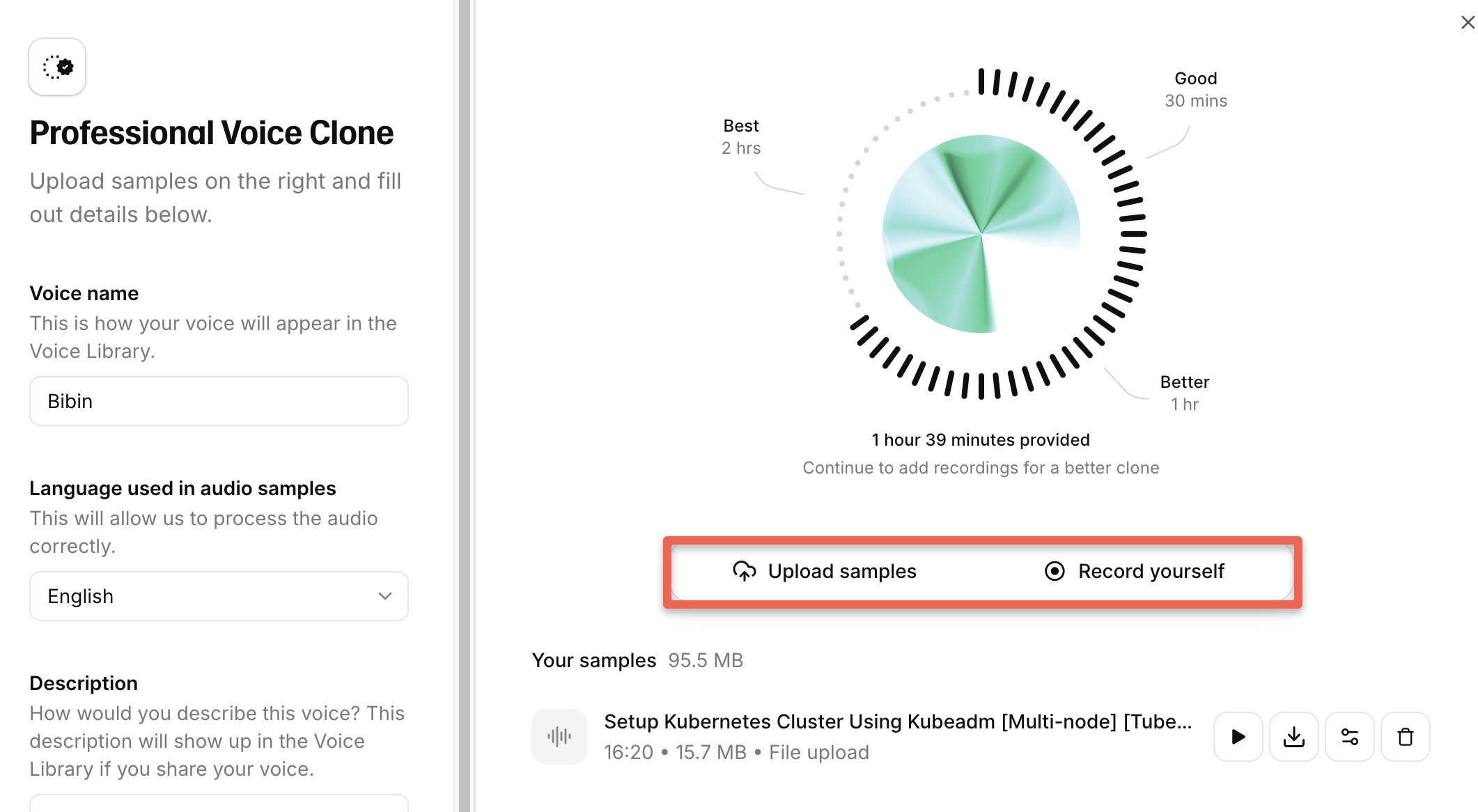
For better and more accurate results, I recommend uploading or recording at least 2 hours of audio.
ElevenLabs suggests recording up to 3 hours for a more professional-quality voice clone.
Step 3: Verify your voice
Once your audio is uploaded, ElevenLabs will ask you to verify your voice.
The verification and cloning process may take a few minutes or sometimes a few hours. Fine-tuning the voice takes time, so the processing may be longer in some cases.
Once this step is complete, your voice will be ready to use.
Yes, now the voice is ready to use.
Step 4: Use your professional voice
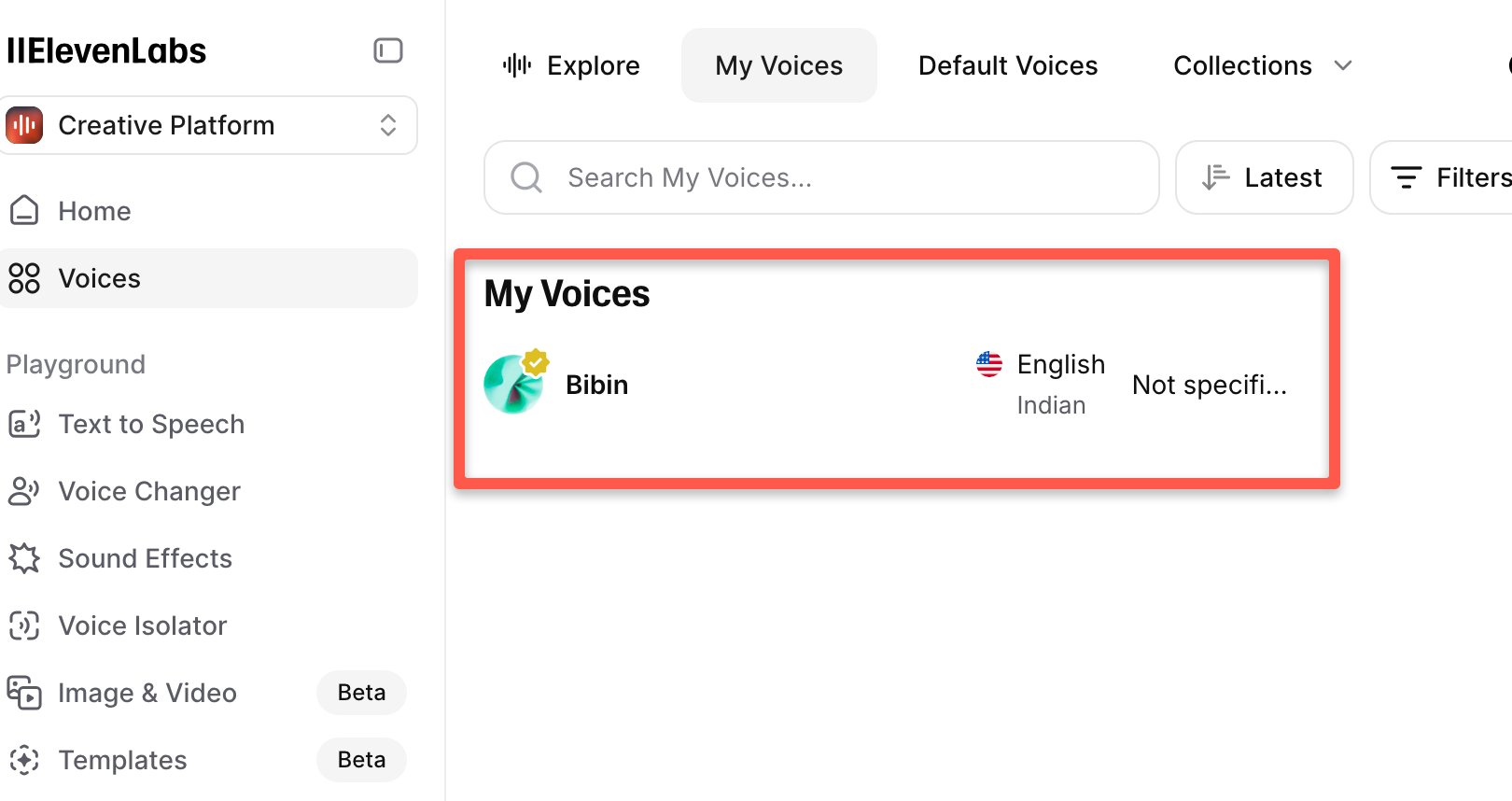
You can find your cloned voice on the Voices page with the name you saved as shown below.
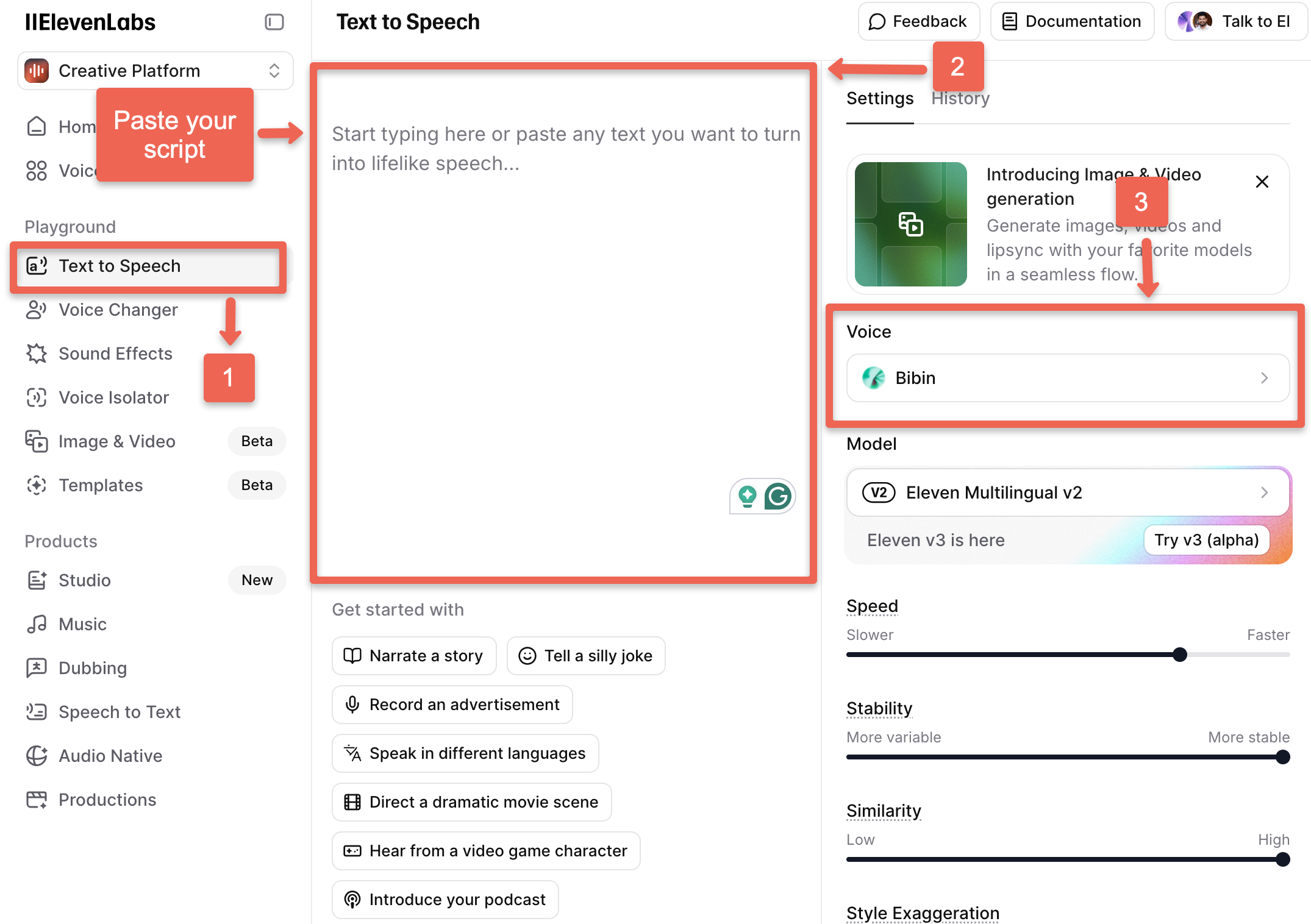
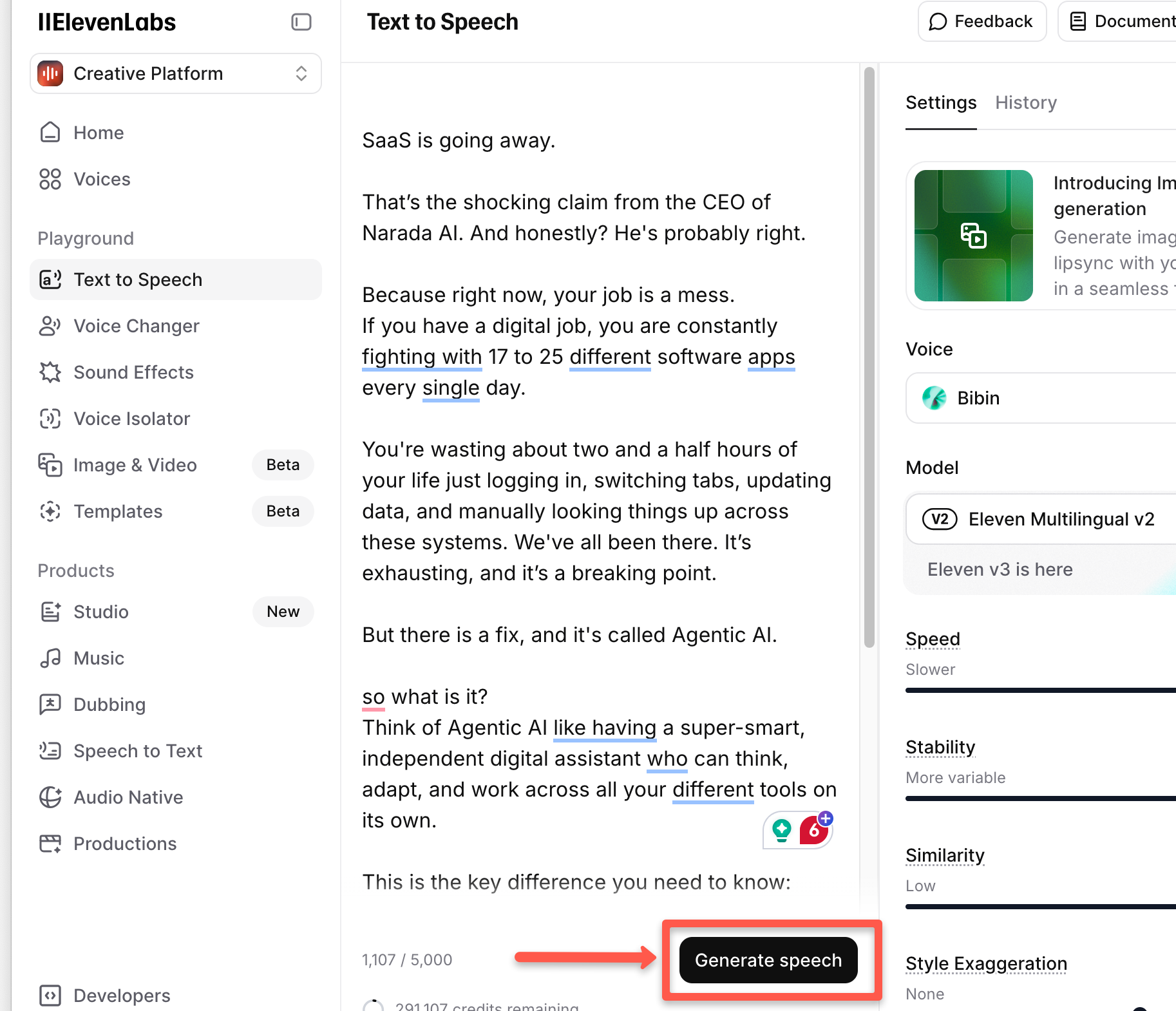
To use it, go to Text to Speech, paste or write your script, and select your cloned voice from the right-side panel.
Click Generate Speech, which appears below your script.
Your audio will be generated, and you can use it for videos, reels, or other content.
For example, we recently created audio for our Instagram reel using ElevenLabs. Here is the audio👇
I hope this gives you a clear idea of how ElevenLabs works and why why it lives up to the hype.
Mistakes to Avoid While Recording Your Audio
To be honest, cloning the voice is the easy part. The hard part is recording your voice and making it sound natural.
Let me explain why with a few points.
Record in a Quiet Environment
Finding a quiet place to record is not easy for everyone, but you need to create that space.
If you record with background noise like traffic, fans, or other people talking, the AI gets confused, and the cloned voice will not sound right.
Always try to record in a quiet room.
For me, the best time to record is late at night after 11 PM or early morning around 6 AM, when my surroundings are quiet.
Use a Clear and Decent Microphone
I am not telling you that you need an expensive studio setup. Just use a decent microphone that captures your voice clearly.
A clear voice helps ElevenLabs clone your voice faster and more accurately.
Speak Like You
Many people, including me, change their voice when they start recording. Our natural tone will change, and the voice starts sounding robotic.
Don't make that mistake.
Just speak casually like you are explaining something to a friend. Use your natural tone, pauses, and normal way of speaking.
This helps ElevenLabs clone your real voice, not a forced or artificial one.
Add Pitch and Emotion
If you want your cloned voice to sound real, you need to show ElevenLabs how you normally speak.
Smile while speaking, ask questions, speed up and slow down your speech.
These small variations make your voice sound more human and natural.
Do not Mispronounce Words
This is a common mistake. If you mispronounce a word, ElevenLabs will learn that mistake and repeat it. That recording then becomes useless.
So stay focused and pronounce words clearly and correctly.
Conclusion
In this guide, I explained how to clone your original voice using ElevenLabs.
The tech behind ElevenLabs is neural network–based voice models. These models are trained on large amounts of human speech to learn how human voices sound, how speech flows and how emotion and tone work.
That is why we are able to create almost perfect clone of our voices.
Also, this is the same tool many small and big influencers and video creators are using today, and they strongly recommend it. I also recommend it for creators who want professional-quality voice cloning.
For example, top tech creators like Varun Maya use ElevenLabs heavily for voice cloning and HeyGen for video avatars in his Instagram reels. They have seen great success in distributing content using AI.
If you still have any doubts about cloning your voice, drop them in the comments.
I will help you right away.
If you want to know more valuable tools like this, here is the list of the best content creation tools.